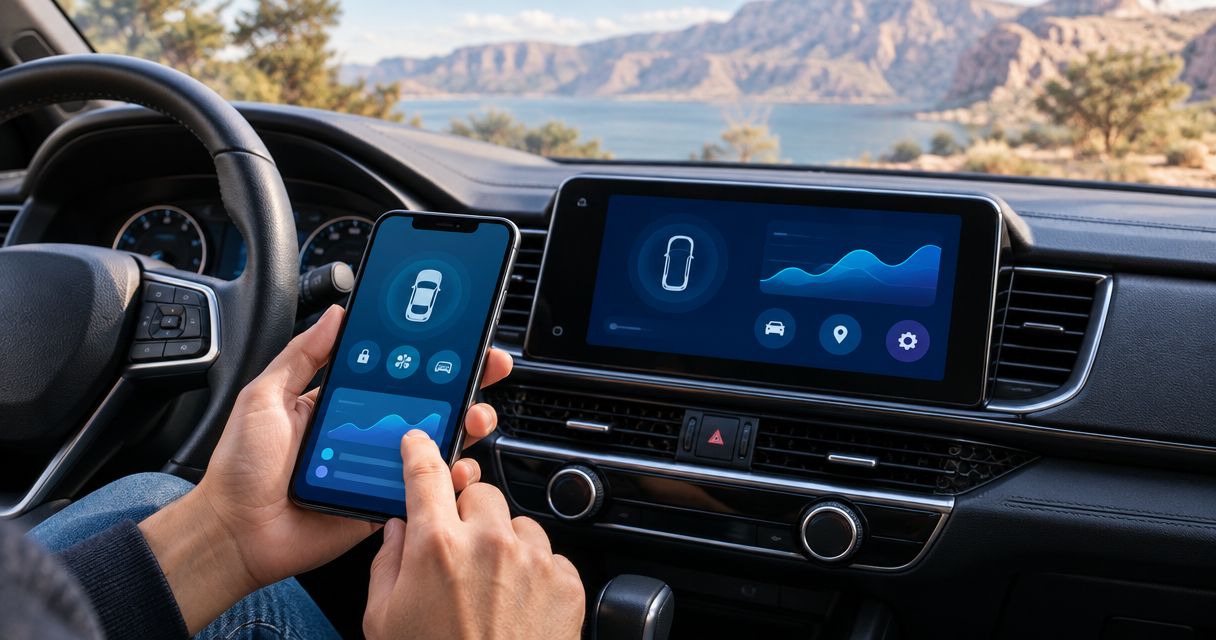
Instead of searching through vehicle information manually, set up HondaLink by installing the official app, signing in, adding your Honda, and completing the verification instructions for your vehicle. This guide separates HondaLink enrollment from Bluetooth pairing and Apple CarPlay so you can connect the service you actually need.
- To answer ‘connect hondalink to my honda,’ start with the official HondaLink app and your vehicle identification number.
- HondaLink features depend on your vehicle’s equipment and eligibility; app installation alone does not enable remote commands.
- Bluetooth handles compatible calls and audio; Apple CarPlay puts supported iPhone apps on your vehicle’s display.
- Bristol Honda serves drivers in Bristol, Johnson City, and Kingsport who need vehicle-shopping or ownership help.
Why this matters
HondaLink enrollment, Bluetooth pairing, and Apple CarPlay setup are different tasks. Connecting your phone for music does not establish that your vehicle supports HondaLink remote services. Likewise, seeing your Honda in the app does not mean every feature shown in general HondaLink advertising applies to it.
For drivers setting up a vehicle in 2026, the right starting point is the exact vehicle—not a demonstration for another model. A matching model name alone does not establish matching connected features.
Bristol Honda is located in Bristol, Tennessee, and serves Johnson City and Kingsport. Bristol Honda is best for local Honda shoppers and owners who want dealership help with vehicle selection, service, and parts. For HondaLink account or enrollment problems, use the support route identified in the app when account access is the issue.
Before you start
- Gather your phone, account access, and vehicle information. Have access to your email, your Honda account credentials if you already have an account, and the vehicle’s VIN. A standard modern VIN contains 17 characters; copy it from the vehicle or its documentation rather than typing from memory.
- Park safely and allow time to follow vehicle-specific prompts. Keep your phone connected to the internet, have the vehicle key with you, and use the owner’s manual for instructions that involve the vehicle display. Do not perform setup while driving.
- Check the ownership and compatibility catch first. A used Honda can require an ownership-transfer or previous-account resolution before enrollment is complete. Confirm HondaLink eligibility for the exact vehicle; downloading the app does not add missing connected-vehicle hardware.
For a 2026 purchase or handover, ask for a demonstration using the vehicle you are considering. Treat the app as a feature to verify, not a capability to infer from the vehicle’s age or appearance.
Choose the connection you need
These connections serve different purposes. Use the table to choose your starting point before changing settings.
| Connection | Best for | What it does | Main limitation |
|---|---|---|---|
| HondaLink | Vehicle information and supported connected services | Connects your account with a compatible Honda and its eligible app functions | Features and enrollment requirements depend on the vehicle |
| Bluetooth | Compatible hands-free calls and audio | Pairs your phone with the vehicle’s audio system | Pairing alone does not activate HondaLink remote services |
| Apple CarPlay | Supported iPhone apps on the vehicle display | Provides an in-car interface for compatible navigation, communication, and audio apps | Requires compatible vehicle equipment and a supported connection method |
Choose HondaLink for vehicle-related app functions, not as a replacement for phone pairing. Its advantage is access to the functions supported by your vehicle. Its limitation is that an account cannot enable equipment or services the vehicle does not support.
Bluetooth is useful for calls and audio without requiring HondaLink enrollment, but it does not provide the same app-based vehicle functions. Apple CarPlay is useful for supported iPhone apps, but it is not HondaLink account verification. For that separate workflow, follow the guide to connecting Apple CarPlay to your Honda.
HondaLink account setup
Install the app and establish account access
- Find HondaLink in your phone’s official app store. Check the publisher information to distinguish Honda’s app from unrelated applications.
- Install the app and open it. Follow the sign-in or account-creation instructions currently displayed; screen wording changes between app versions.
- Use your existing Honda account if you already have one. If you cannot access it, complete the account-recovery process before creating another account for the same vehicle.
- Complete any requested email verification. Keep your account password and verification codes private.
- Review permission requests individually. Allow permissions needed for the functions you intend to use, rather than approving or rejecting every request without reading it.
Expected result: You can open HondaLink and access your account without returning to an unresolved sign-in or verification screen.
During setup in 2026, follow the instructions on your installed version rather than forcing the app to match an older screenshot. If a button name differs, look for the action described here instead of selecting an unrelated setting with a familiar name.
Add and identify your Honda
- Open the app’s vehicle-addition process and enter or scan the VIN when requested.
- Compare the submitted VIN against the vehicle’s documentation. Check all 17 characters, especially if the app cannot identify the vehicle.
- Confirm that the vehicle identified by the app matches the Honda you are adding. Stop if the details do not match.
- Complete the ownership or enrollment instructions presented for that vehicle. Follow any directions involving the vehicle display only while parked.
- Review the functions associated with the added vehicle. Distinguish information you can view immediately from services that require further activation or verification.
Expected result: The correct Honda appears in your account, or the app identifies a specific enrollment issue to resolve. A saved vehicle is a useful checkpoint, but it is not proof that remote commands are enabled.
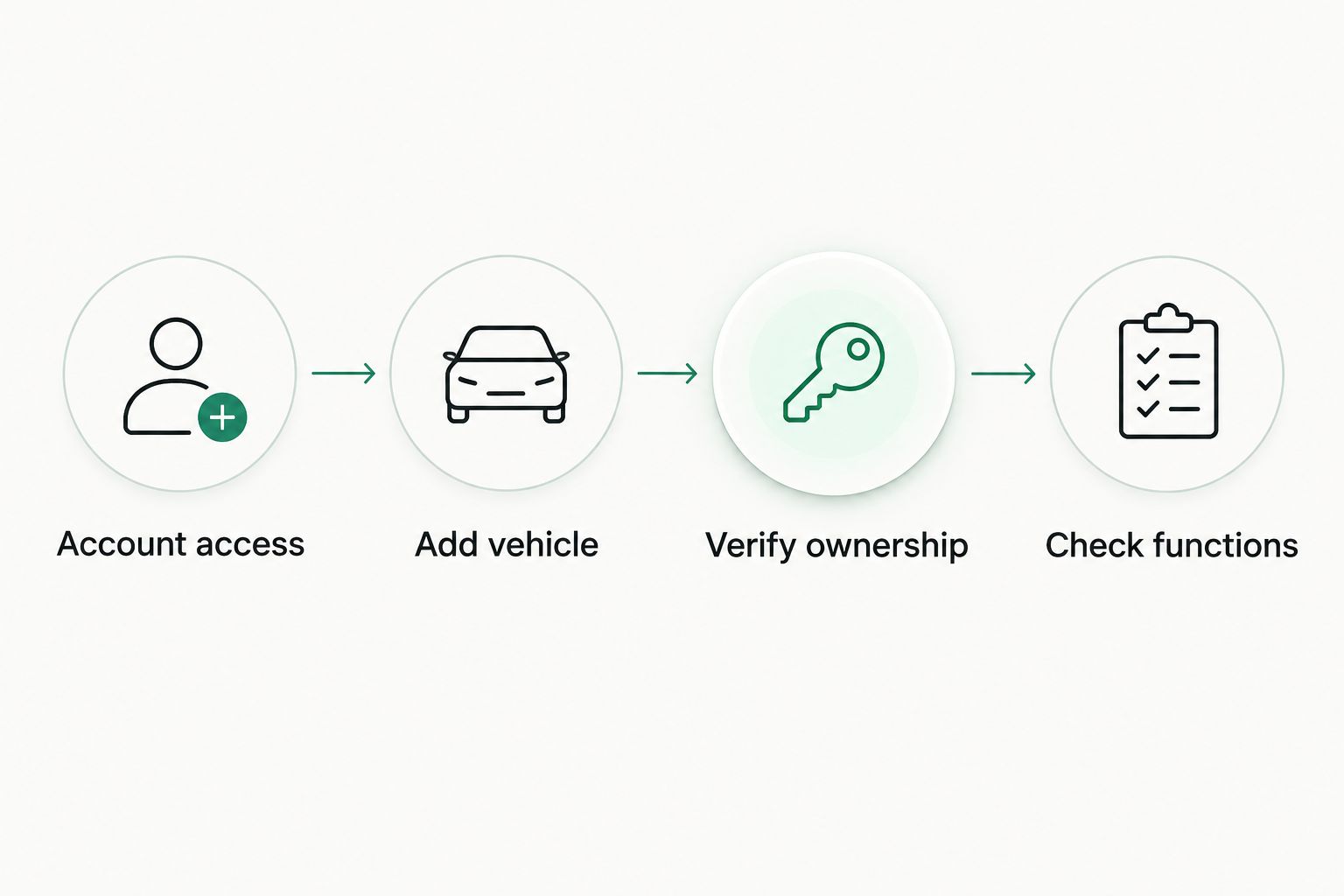
Vehicle verification and connection checks
Verify ownership and check functions
- Finish any outstanding ownership-verification instructions shown in HondaLink. If the app reports a previous-owner association, use its support process rather than repeatedly creating accounts.
- Read the eligibility information for your vehicle. Do not assume a missing function is a phone-permission problem.
- If the app or your vehicle’s instructions require a phone connection, open Bluetooth settings and complete the pairing process described in the owner’s manual. Confirm matching pairing codes when prompted.
- Check the vehicle shown in HondaLink before testing a function. Start with information retrieval or another supported, non-driving task.
- Read any error message in full and save its wording. Note whether the failure occurred during sign-in, vehicle addition, verification, or a specific command.
Expected result: You know which functions your vehicle supports, which enrollment steps are complete, and where any remaining problem occurs.
A Bluetooth connection is not a universal requirement for every HondaLink function. Follow the instructions for the vehicle and function you are using; do not keep deleting a working phone pairing to solve an unrelated account problem.
If your vehicle supports remote engine start, never test it in a garage or another enclosed area. Follow all safety instructions supplied with the vehicle and the app.
Confirm a repeatable connection
- Close HondaLink normally and reopen it. Confirm that the correct vehicle remains associated with your account.
- Repeat 1 supported information check while parked. Review any displayed update time so you do not mistake previously saved information for a fresh response.
- If you also paired Bluetooth, test audio or a hands-free call separately. This checks the phone connection without confusing it with HondaLink enrollment.
- Record any unresolved message before changing another setting. Change one thing at a time so you can identify what actually fixed the problem.
Expected result: You can distinguish a working account, a working phone pairing, and a successful vehicle-information update. Those are separate checkpoints, not interchangeable signs of success.
Reconnect HondaLink after changing phones
Replacing your phone is an adjacent workflow, not a reason to start vehicle enrollment from scratch.
- Install HondaLink on the replacement phone and sign in with the account already associated with your Honda.
- Complete any account-security checks. Confirm that the correct vehicle appears before attempting to add it again.
- Review the new phone’s app permissions. Settings from the previous phone do not establish that every permission is enabled on the replacement.
- Pair the replacement phone with the vehicle separately if you use Bluetooth. Remove an obsolete pairing through the vehicle’s documented process if it interferes with the new connection.
- Test HondaLink and phone audio independently. If 2 phones are present, check which phone the vehicle has selected for audio before diagnosing an app failure.
Expected result: Your existing account works on the new phone, and the vehicle uses the intended phone for calls or audio.
For a phone replacement in 2026, keep access to your account-recovery email before erasing the old device. If you sell the vehicle instead, follow Honda’s ownership-transfer instructions and remove personal information using the vehicle’s documented process.
Troubleshooting HondaLink setup
The app cannot add your vehicle
Compare the VIN character by character with the vehicle’s documentation, then confirm eligibility for that exact Honda. If the VIN is correct but enrollment still fails, preserve the error message and use the support route shown in HondaLink. Reinstalling the app does not correct a vehicle-eligibility or ownership-record issue.
Your used Honda is associated with another owner
Follow the ownership-transfer instructions provided by HondaLink support and have your ownership documentation ready. Do not request or use the previous owner’s password. Avoid a factory reset as a first response; clearing local settings does not establish that an account association has been removed.
Bluetooth works, but HondaLink does not
Treat the Bluetooth connection as a separate success. Check your HondaLink sign-in, vehicle verification, internet connection, and the eligibility of the function you are attempting. A working audio connection does not prove that the vehicle can receive an app-based command.
A vehicle status or command does not update
Check the phone’s internet connection and any update time displayed in the app. Confirm the function’s operating requirements in the vehicle documentation, including vehicle state and connectivity requirements. Save the exact failure message rather than repeatedly sending the same command.
The problem started after a phone or app update
Check for a current app update, restart the phone, and review app permissions. Reopen HondaLink and sign in again if requested. Before clearing app data or resetting vehicle settings, make sure you can recover your account and understand which saved settings the reset removes.
Customize your workflow
Use HondaLink as an ownership aid, not as a substitute for the vehicle’s maintenance instructions. Review the information supported by your Honda and decide which notifications are useful. Keep a separate record of completed service so you can answer maintenance questions even when your phone is unavailable.
For Bristol, Johnson City, and Kingsport drivers shopping in 2026, include phone compatibility in the vehicle demonstration. Bring the phone you actually use, ask which HondaLink functions apply to the exact vehicle, and test the relevant connection while parked. A clear demonstration is more useful than assuming every trim works alike.
For service and parts planning, describe the underlying concern—not just what the app shows. Share dashboard messages, starting problems, or unusual behavior with the service team. When ordering parts, provide the VIN and describe the component; an app connection issue alone does not identify a failed part.
FAQ
How do I connect HondaLink to my Honda?
Install the official HondaLink app, sign in, add your vehicle using its VIN, and complete the verification instructions provided for that Honda. Check vehicle eligibility before expecting remote or other connected functions.
Do I need Bluetooth to use HondaLink?
Bluetooth is not a universal requirement for every HondaLink function. Follow the app and owner’s manual instructions for your exact vehicle, and set up Bluetooth separately when you need compatible calls or audio.
Why does HondaLink not show remote start?
Remote start in HondaLink depends on the vehicle’s equipment and service eligibility. Confirm support for the exact vehicle before treating the missing function as a setup fault.
Can I connect HondaLink to a used Honda?
You can enroll an eligible used Honda after completing the required account and ownership steps. If the vehicle remains associated with a previous owner, follow HondaLink’s ownership-transfer support instructions.
Is HondaLink the same as Apple CarPlay?
No. HondaLink provides supported vehicle-related app functions, while Apple CarPlay displays compatible iPhone apps through supported vehicle equipment. Setting up one does not complete setup for the other.
Do I need to add my Honda again after buying a new phone?
Start by signing into your existing Honda account on the new phone. Confirm whether the vehicle is already listed before attempting another enrollment, then set up phone-to-vehicle pairing separately.
Can Bristol Honda help me choose a Honda with connected features?
Bristol Honda sells new and certified pre-owned Honda vehicles in Bristol, Tennessee, serving Johnson City and Kingsport. Ask the team to confirm the connected features of the exact vehicle you are considering rather than relying on a general model description.
One last thing
Save the exact error message before resetting anything. Knowing whether the failure occurs at account access, ownership verification, phone pairing, or a vehicle command gives support a useful starting point—and helps you avoid erasing settings that already work.