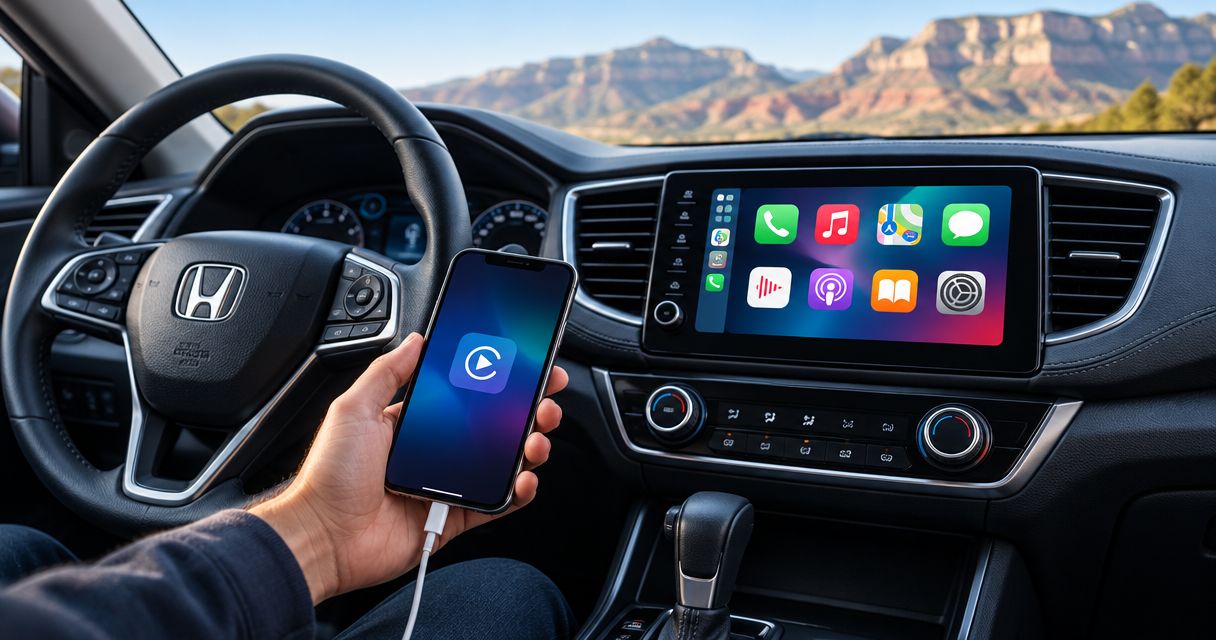
Instead of reconnecting your phone or handling directions on its screen before every drive, connect Apple CarPlay to your Honda through its supported USB or wireless connection and approve the setup prompts. Once paired, compatible Honda systems let you use supported navigation, calling, messaging, and audio apps through the vehicle display and Siri.
- To connect Apple CarPlay to Honda, confirm compatibility, enable Siri, and use the supported USB or wireless connection.
- Wired Apple CarPlay needs a data-capable cable and the correct USB port; charging alone does not confirm connectivity.
- Wireless Apple CarPlay requires vehicle support, Bluetooth, and Wi-Fi; Bluetooth audio alone is not CarPlay.
- Bristol Honda is a local starting point for Honda shoppers and owners who need vehicle-specific guidance.
Why this matters
A phone that charges or plays Bluetooth audio is not necessarily connected to Apple CarPlay. Those functions use different connections, so repeating Bluetooth pairing will not fix a cable-only CarPlay setup.
Bristol Honda is located in Bristol, Tennessee, and serves Johnson City and Kingsport. Whether you are shopping for a Honda or sorting out your current vehicle, start with the exact model year, trim, and installed audio system—not the appearance of the screen.
For this 2026 setup guide, the rule is simple: your vehicle’s equipment determines the connection method. A newer phone does not add wireless CarPlay to a Honda system that supports only a wired connection.
Before you start
- Confirm vehicle compatibility. Check the owner’s manual or official Honda information for your exact model year, trim, and audio system. Confirm wired and wireless support separately; a touchscreen alone proves neither.
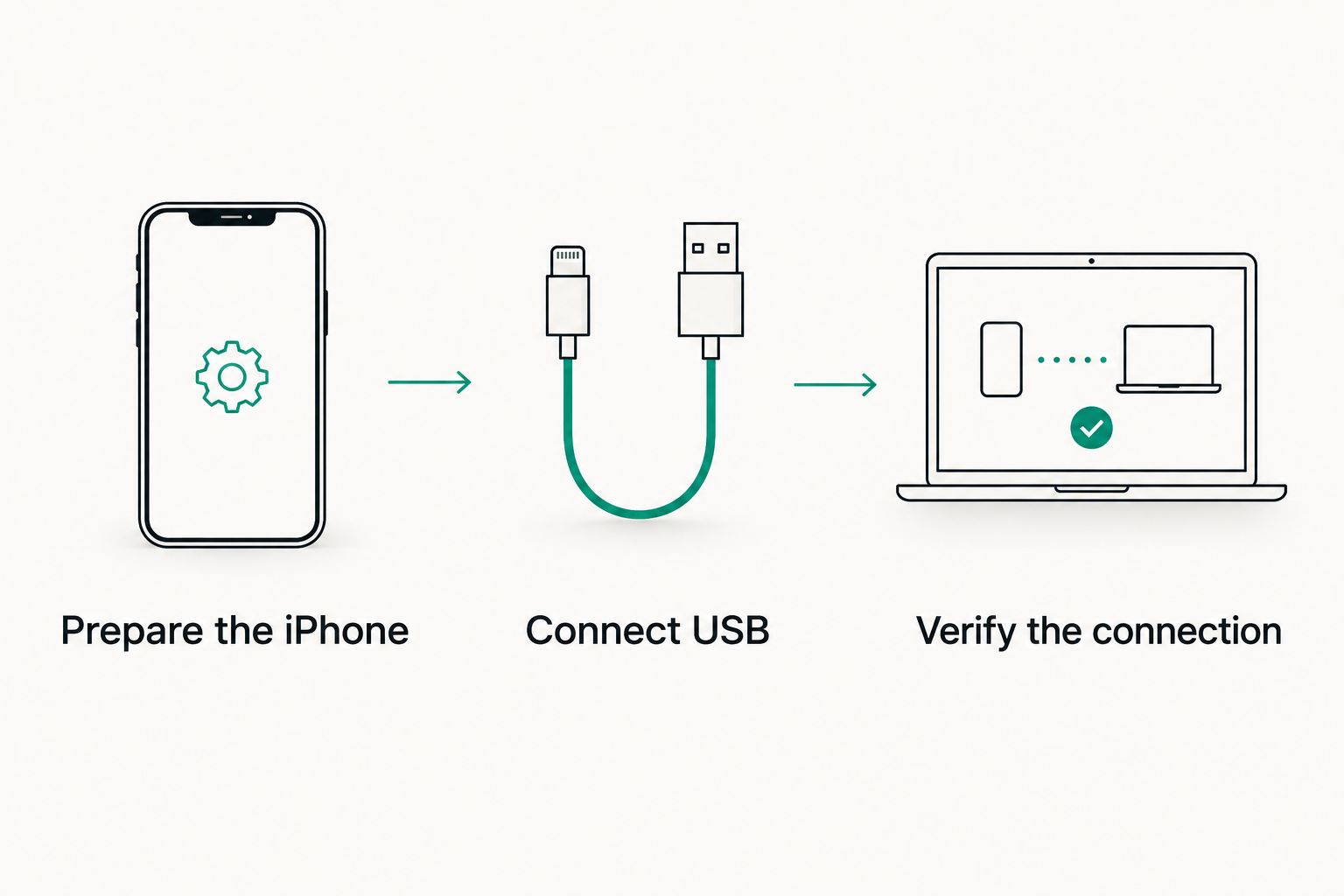
- Prepare your iPhone. Update iOS, enable Siri in the iPhone’s settings, and unlock the phone for initial setup. For wired setup, bring a data-capable cable with connectors that fit your iPhone and the vehicle’s designated smartphone USB port.
- Park before pairing. Leave the vehicle parked with its infotainment system on. The easy-to-miss gotcha is the USB port: a charging-only port can power your phone without carrying the data CarPlay needs.
You do not need a separate CarPlay account. Your existing app accounts remain relevant for services that require sign-in, but complete those sign-ins on your phone while parked.
Choose your connection method
There are 2 connection methods to check: wired and wireless. The table compares the setup choices, not a promise that your particular Honda supports both.
| Connection | Best for | What you need | Advantage | Limitation |
|---|---|---|---|---|
| Wired Apple CarPlay | Drivers who want a direct connection and charging through the cable | Compatible vehicle, iPhone, data-capable cable, designated USB port | Avoids wireless pairing as part of the connection | Cable condition and port selection matter; you must plug in |
| Wireless Apple CarPlay | Drivers whose Honda supports wireless use and who prefer leaving the phone unplugged | Compatible vehicle and iPhone, Bluetooth and Wi-Fi enabled | Removes the cable from everyday connection | Requires wireless support and does not itself charge the phone |
Choose wired Apple CarPlay when the vehicle supports only wired operation; choose wireless Apple CarPlay only after confirming wireless compatibility. Neither method makes incompatible apps appear on the dashboard.
If you are shopping in 2026, verify this feature on the specific vehicle you intend to buy. Two vehicles with the same model name can have different equipment, especially when you compare different years or trims.
Wired connection setup
Prepare the iPhone
- Open the iPhone’s Settings and confirm Siri is enabled. The Siri settings heading varies by iPhone and iOS version, so use Settings search if necessary.
- Open Settings, then General, then CarPlay. Review existing vehicle entries so you can recognize the correct Honda during setup.
- Unlock the iPhone and keep it accessible while parked. Initial connection can require permission on the phone as well as confirmation on the vehicle display.
Expected result: Siri is available, the phone is unlocked, and you can respond to the first-connection prompts. Seeing no saved Honda under CarPlay before the first setup is not a fault.
Connect the USB cable
- Locate the USB port designated for smartphone integration in the Honda owner’s manual. Do not assume every port in the cabin carries smartphone data.
- Connect a data-capable cable directly between that port and your iPhone. Avoid a hub or an unnecessary chain of adapters while establishing the first connection.
- Read and approve the CarPlay prompts on both screens. Permission wording varies, so approve only the connection to the vehicle you are using.
- If the Honda screen does not switch automatically, select Apple CarPlay when that label appears. Other menus vary by audio system; follow your owner’s manual rather than searching for a universal Honda settings path.
Expected result: The vehicle display shows the CarPlay interface and supported app icons. If the phone only charges, the data connection has not yet been established.
Verify the connection
- Open a supported navigation app through the CarPlay display while parked. Confirm that its controls appear on the vehicle screen.
- Start an audio selection and check the vehicle’s audio volume. If Siri or directions are quiet, adjust the volume while that particular audio is speaking.
- Disconnect the cable, then reconnect it while still parked. Confirm that CarPlay returns without repeating the full first-time setup.
These 3 checks separate a completed setup from a connection that only reached a permission screen. They also give you a clear description of any failure: display, audio, or reconnection.
Expected result: Supported apps open, audio comes through the vehicle, and reconnecting the cable restores CarPlay. Complete the checks before leaving your parking space.
Wireless connection setup
Wireless setup is a separate workflow, not a setting that every wired Honda system contains. Confirm support before spending time deleting pairings or changing phone settings.
Enable wireless pairing
- On the iPhone, open Settings, then Bluetooth, and turn Bluetooth on. Open Settings, then Wi-Fi, and turn Wi-Fi on as well.
- Put the Honda audio system into its phone-pairing or wireless CarPlay setup mode, following the vehicle’s manual. Vehicle button names differ, so use the instructions for the installed system.
- Select the vehicle when it appears during pairing. If both screens show a confirmation code, check that the codes match before accepting.
- Accept the CarPlay connection prompts. If the system supports beginning wireless setup through a USB connection, follow its on-screen instructions rather than assuming Bluetooth pairing alone completes setup.
Expected result: CarPlay appears without the USB cable connected. Bluetooth calling or music playback by itself does not confirm wireless CarPlay is working.
Check automatic reconnection
- Leave Bluetooth and Wi-Fi enabled on the iPhone. Wireless CarPlay uses Wi-Fi for its connection; turning Wi-Fi off interferes with that workflow.
- End the vehicle session normally, then check the connection on your next parked start. Keep the paired iPhone with you.
- If another saved phone connects instead, use the vehicle’s phone-selection controls to choose yours. Consult the manual for device-priority settings, where provided.
Expected result: Your saved iPhone reconnects without a fresh pairing process. If you must approve a new pairing every time, troubleshoot the saved connection rather than accepting that as normal operation.
For a 2026 troubleshooting check, use the settings actually shown on your current iPhone. Older screenshots can place Siri or connection permissions under different headings.
Troubleshooting common CarPlay problems
The phone charges, but CarPlay never opens
Check the port and cable before resetting anything. Confirm that you used the smartphone data port, then try another known data-capable cable with the correct connectors.
Inspect the connectors for damage or debris without inserting metal tools. If the plug is damaged or will not seat properly, stop forcing it and have the connection inspected.
Bluetooth works, but wireless CarPlay does not
First confirm that the Honda supports wireless CarPlay. Bluetooth audio support is not proof of wireless CarPlay support.
If compatibility is confirmed, turn on both Bluetooth and Wi-Fi, then repeat the vehicle’s wireless CarPlay setup. Follow the manual’s pairing sequence rather than stopping after the phone-call connection succeeds.
CarPlay disappeared after a phone change or update
Restart the iPhone and restart the vehicle’s infotainment session using the normal procedure in the manual. Recheck Siri and any restrictions that affect CarPlay.
If the saved pairing still fails, open Settings, General, CarPlay, select the vehicle, and tap Forget This Car. Remove the old phone entry from the vehicle using its manual, then pair again; forgetting the connection means setup must be repeated.
The wrong iPhone connects
A saved household phone can connect when you intended to use another one. While parked, choose the intended device through the vehicle’s available phone controls and check its priority settings.
When diagnosing the problem, keep only 1 iPhone actively participating in the pairing attempt. This isolates device selection without requiring you to erase every saved driver’s settings.
CarPlay opens, but an app is missing or silent
Not every iPhone app supports CarPlay. On the iPhone, open Settings, General, CarPlay, select the vehicle, then open Customize to review the supported apps you can arrange.
For sound problems, distinguish music volume from navigation or Siri volume. If only one app fails, check that app’s permissions, sign-in, and phone operation before treating the entire Honda audio system as faulty.
Customize your workflow
Set up the apps you actually use
Use Customize in the iPhone’s CarPlay settings to arrange supported apps. Put your preferred navigation and audio apps where you can find them without searching through extra screens.
Set a destination and select audio while parked. Siri supports hands-free requests, but voice control does not remove the need to stay attentive or follow traffic laws.
Check CarPlay during vehicle shopping
Bring your own iPhone and cable when comparing vehicles. Ask to verify CarPlay on the exact Honda under consideration, then check the connection method, display operation, and audio before making assumptions about the equipment.
For used-vehicle shopping in 2026, ask whether the installed audio system is original or has been replaced. An aftermarket system can change which instructions apply; the Honda model name alone will not identify its settings.
Bristol Honda offers new and certified pre-owned Honda vehicle sales, financing, and service/parts. For shoppers from Bristol, Johnson City, and Kingsport, the practical next step is to ask about the specific vehicle’s equipment—not rely on a general model description.
Prepare for service or parts help
Before requesting service, write down the vehicle’s model year and trim, iPhone model, iOS version, and whether the problem occurs with wired or wireless use. Note whether the phone charges, whether Bluetooth works, and exactly where setup stops.
Bring the cable that produces the problem. Ask the Honda service team to distinguish a phone-setting issue, cable or port issue, and vehicle-system issue before discussing replacement parts or software work.
If you need a cable or accessory, confirm its connector and data requirements first. A charging accessory is not automatically suitable for CarPlay, and a new accessory does not establish that the vehicle has wireless support.
Plan your next Honda visit
Ask about a specific vehicle’s CarPlay equipment or discuss a connection problem with the team.
FAQ
How do I connect Apple CarPlay to my Honda for the first time?
Confirm that your Honda supports CarPlay, enable Siri, and connect your unlocked iPhone through the designated data USB port or the supported wireless setup. Approve the prompts on both screens while parked.
Can I connect Apple CarPlay to my Honda without a cable?
You can connect without a cable only if the installed Honda audio system supports wireless Apple CarPlay. Confirm support for the exact vehicle, then enable Bluetooth and Wi-Fi and follow its pairing instructions.
Why does my iPhone charge in my Honda but CarPlay does not work?
Charging does not confirm a working data connection. Check that you are using the designated smartphone USB port and a data-capable cable, then review the connection prompts and Siri settings.
Is Bluetooth the same as Apple CarPlay?
Bluetooth is not the same as Apple CarPlay. A Honda can support Bluetooth calls and audio without supporting wireless CarPlay, so verify those features separately.
How do I remove an old Honda CarPlay connection?
On the iPhone, open Settings, General, CarPlay, select the vehicle, and tap Forget This Car. Remove the saved phone from the vehicle through its own settings if you intend to establish a completely fresh pairing.
Can two iPhones share the same Honda CarPlay setup?
Multiple-phone storage and device-selection behavior depend on the installed audio system. Check the vehicle manual, and choose the intended phone while parked rather than assuming both phones can control CarPlay together.
What should I bring if I need help with Honda CarPlay?
Bring the iPhone and cable involved, plus the vehicle’s model year and trim and the phone’s iOS version. Describe whether charging, Bluetooth, the CarPlay display, or automatic reconnection fails so the team can focus on the right part of the setup.
One last thing
Before handing over or trading in your Honda, remove your phone from the vehicle and forget the vehicle on your iPhone. Check the owner’s manual for clearing saved personal information, including paired devices and stored destinations.
Keep that step on your 2026 vehicle-change checklist. Pairing the next phone is easier to manage when the previous owner’s connection is no longer competing for selection.